 Managing Commissions
| Document Version | v.5 |
|---|---|
| Document Last Updated | 11/23/2022 |
| Software Version Documented | v.9.9.1 |
Overview
In this document, we will discuss commission types, setting up commissions at the account, job and order level and running commission reports.
How are Commissions Assigned?
Commissions can be assigned at the Account Level, Job Level and Order level. The software will look in that order to determine if any commission representatives need to be added to an order. This hierarchy is particularly crucial in the case that there is a rep assigned to both an account and a job in that account.

Commission Representative Types
-
Savance Enterprise supports four different types of sales representatives (reps) which is what determines how you will structure commission reports.
-
Inside Sales Rep
-
Outside Sales Rep
-
Order Writer
-
Order Taker
-
-
The Inside, Outside, and Order Writers can be assigned at the account, job and order level. But Order Taker is configured on order level only.
Inside/Outside Sales Reps
Inside and Outside sales reps can be assigned at the account, job & order level. An inside and outside sales rep is assigned to the account, they will always be assigned commission for every order written for that account or job regardless of who takes the order. There is virtually no difference between inside and outside reps. Having both rep types available simply allows you to isolate a rep type to report on when you run commission reports. More on generating reports will be discussed later in this article.
Order Writer
Order writers can be assigned at the account and job level. The key difference between inside/outside sales reps and order writers is that order writers can not have a specific user assigned. Rather, the user selected as “int. Owner” in the order header at the time of order conversion will earn the commission. 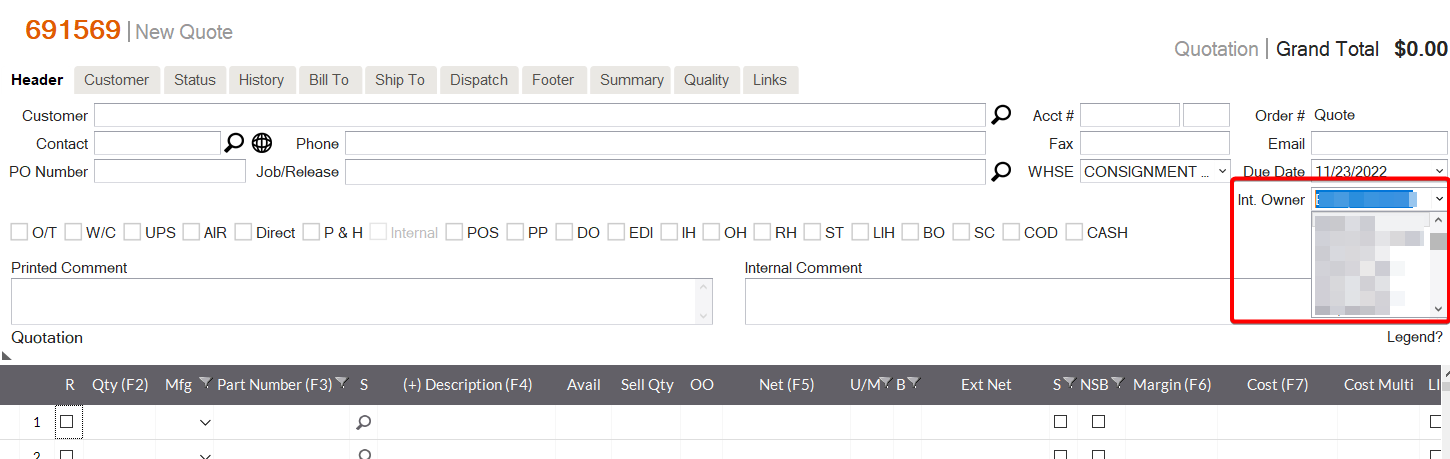
Order Taker
Order takers are only assigned at the time of order conversion. You can not manually assign order takers; it is a system generated record that can be leveraged when generating commission reports. You can run an “Order Taker” commission report for a given employee(s) to show you all orders they converted. If you run a commission report for order takers and the person(s) you are running the report for has any other commission type for a given order, they will not get an order taker commission reported for that order.
Commission Pay Types[^1]
Booked Sales: commission % X order total
Invoices: commission % X profitable invoice total[^2]
Profits on Booked Sales: commission% X profit on total order
Payments Only: commission % X payment amount for invoice[^3]
Profits After Payment: commission % X profit X (payment amount for the invoice / invoice grand total)
Profits on Invoices: commission % X Profit of the invoice
General note on RMAs, Penalties & Discount Items
Penalties: Penalties are assessed at the order or crediting level. You can assess a penalty on an RMA to reduce the credit due to the customer based on any number of reasons (restocking charge, special items restocking penalty, etc)
-
Penalties are viewed as 100% profit as it relates to commissions. This will impact the commission amount owed from the rep back to the company. For example if the original commission amount on the order was 10.00, the commission % on profits was 10% and the penalty was $2.00, commission owed back to the company would be calculated like this: Commission owed back = Original Commission - (Penalty * Commission %).
-
Penalties can only impact the commission amount for commission pay types including Profits After Payment, Profits on Invoices and Profits on Booked Sales. All other types will not take penalties into account.
Discount Items:[^4] Discount items can be added to the order level for restocking fees in place of a penalty. In this case you can add a cost and a sell to determine the profit amount for that line item.
-
Because discount items can have a profit other than 100% they will impact commission owed from the rep back to the company based on their profit amount.
-
Discount items can impact the commission amount for all commission pay types.
Assigning Reps at Account & Job Level
-
Accounts -> Manage Accounts
-
Search for and open desired account

-
Find Reps Tab
-
Add Rep Type, User, Commission Type, Commission Split and Comment as needed
-
If you want to assign a rep to a particular job as is seen for one of the representatives below, choose the relevant job from the job combobox
Notes for Adding Reps On Job Level
-
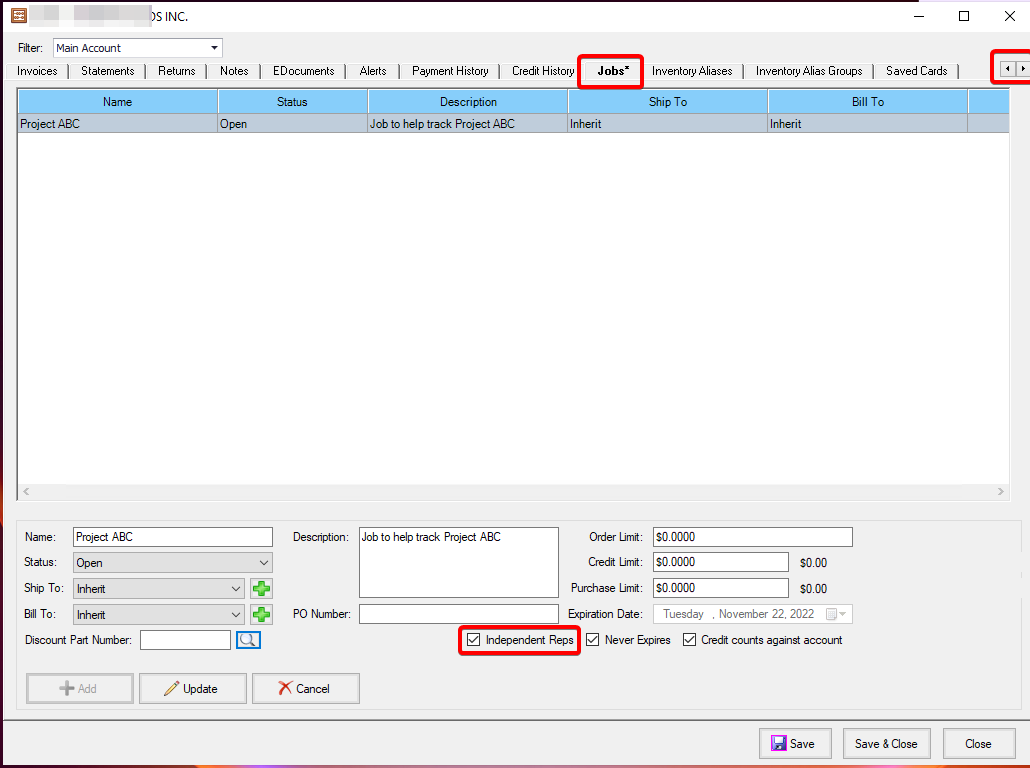
In the case where a commission rep is assigned on the account and assigned for a job on the same account and the order header specifies that account AND the job, the software will look at a setting at the job level called “independent reps” to determine how commission will be assigned.
-
If that setting is on, only the job level commission rep will be assigned to the order. If it is off, both the account level and job level commission reps will be assigned to the order.
-
To set the Independent Reqs setting:
-
Pull up the Account profile in the Account Manager.
-
Click the arrow to scroll through the tabs to find the Jobs tab and open it.
-
Choose and existing Job and click Edit (or create a new job)
-
Be sure to check the box for Independent Reps, if desired.
-
-
Notice that the order writer does not have a user assigned. This is by design as the user is recorded at the time of order conversion for that rep type.
Dynamic Discount Profile
- Another way to specify how commissions are calculated is to set a Dynamic Discount Profile. This allows the commission percentage to be dynamic based on the profit of the order.
Dynamic Discount Profile Setup
-
(Need security access to Administrator) Access the Admin Menu and select Administrator.
-
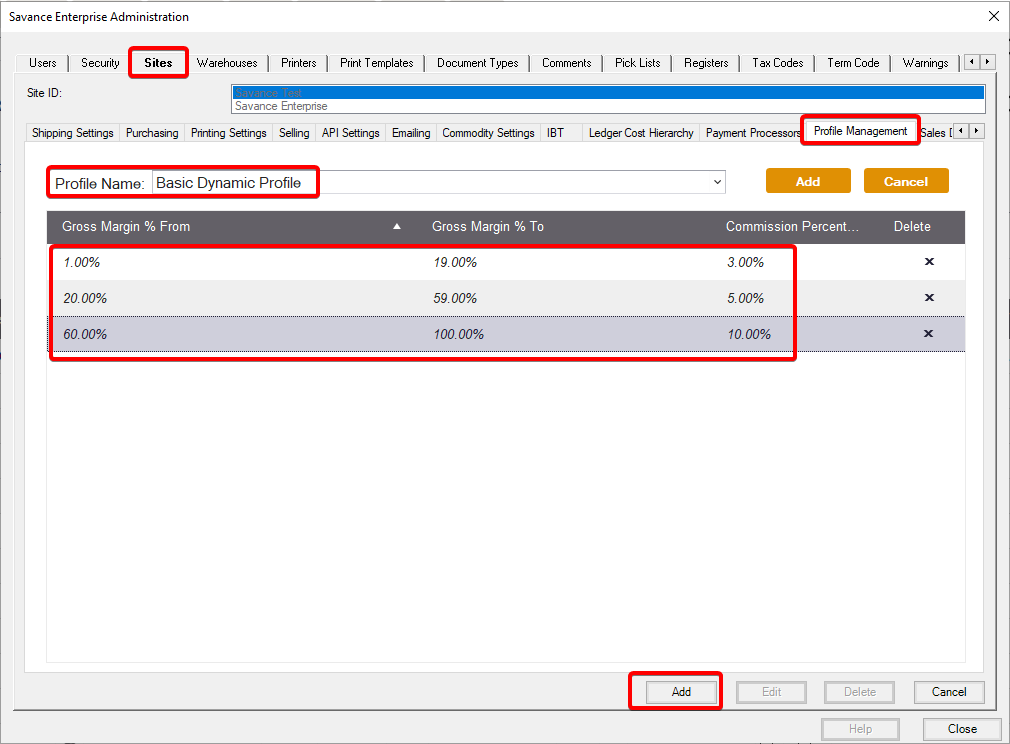
Open the Sites tab then the Profile Management tab.
-
Click New at the bottom of the screen (turns into the Add button when clicked).
-
Give the profile a name.
-
Enter the from and to margins and the commission percentages
-
You must do this until 100% is reached to avoid issues. See example in screenshot.
-
Then back on the screen where you add Reps to an Account, you can select the Dynamic Discount Profile you just created here.
-
When you have finished adding the Sales Reps and their details, click Save and Close.

-
If you want to confirm commissions are accurately being transferred to the order, open a new quote and add the same customer you set up commissions for
-
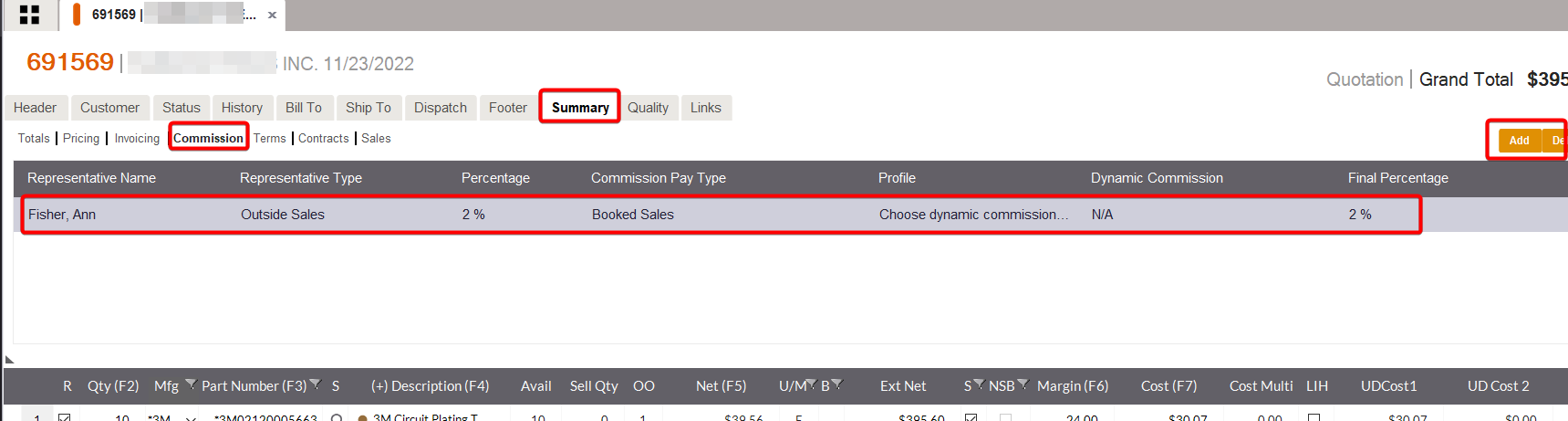
Open commissions tab (Summary -> Commission)
-
The reps are listed as set up in the account. You can also add or delete reps per order from here.
- If Order Writer is listed in the Account, notice that the order writer has been assigned based on the user specified as “int. Owner” in the order header.
- If Order Writer is listed in the Account, notice that the order writer has been assigned based on the user specified as “int. Owner” in the order header.
-
If you added different reps to a job for that account, and then add the job to the order, the commissions tab will refresh to reflect the reps listed on the Job.

Adding & Removing Reps at Order Level
Perhaps you need to add or remove a representative from an order in a one-off scenario. In this case you can open the commission tab on a new quote to do so.
Note for Negative Commissions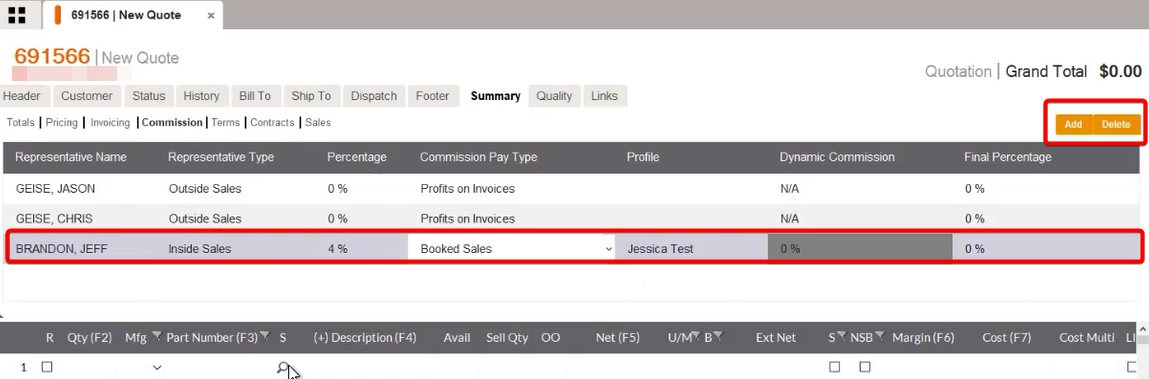
- Sales Orders will reflect positive commissions and RMAs will reflect negative commissions. If desired, you can remove the commission set up for an RMA, otherwise, it will show negative commission for the req on the reports.
Setting for Certain Item Types to Exclude From Commissions
-
The following item types include a setting to exclude them from commissions. Items on orders that are excluded from commissions will not be considered when calculating commissions and will not be included on reports.
-
Misc. Charges

-
Service
-
Freight
-
Discount
-
-
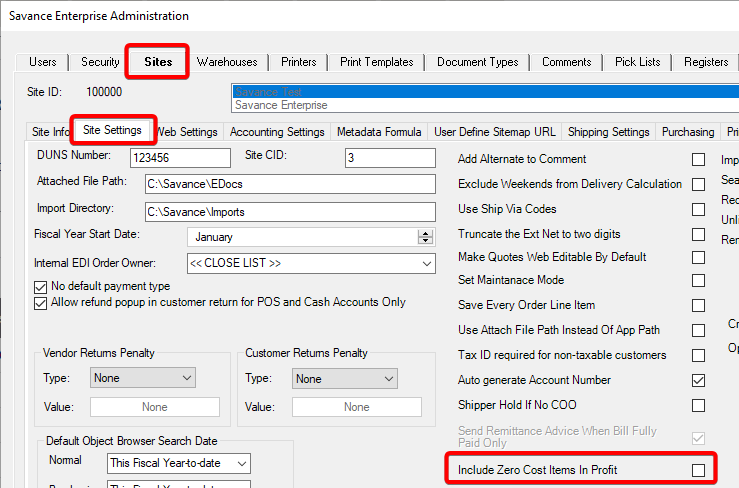
A similar setting (though not commonly used) is the one called “Include Zero Cost Items in Profit”. This setting is found in Admin, Administrator, Sites, and Sites Settings.
-
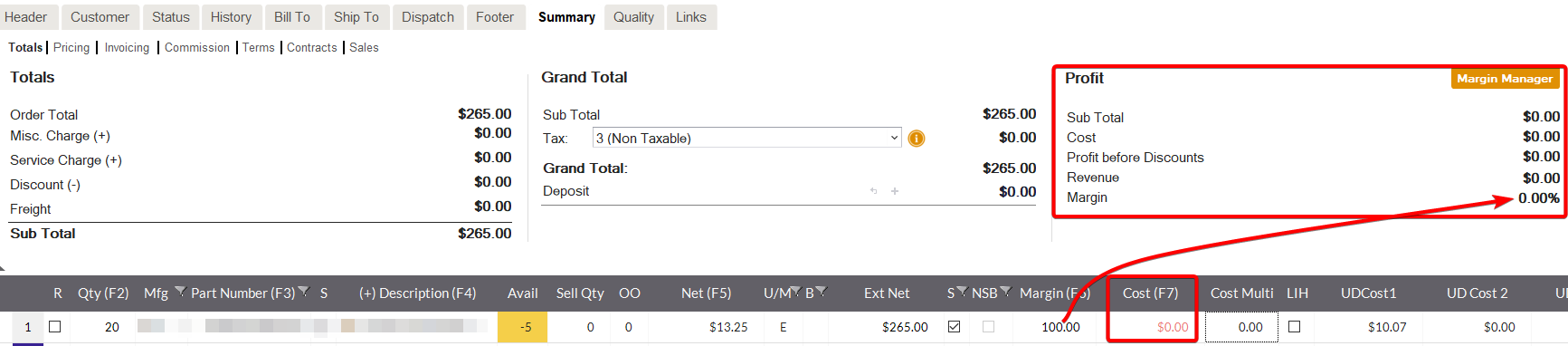
When unchecked, all items with a zero cost will be excluded from the margin which affects commissions. Even if that means the product has a 100% profit margin.
-
A work around (not recommended) is to set the cost to one cent.

Generating Commission Reports
-
Open the commission module (Accounting Manager -> Commissions)

-
Add the representatives you want to run reports for using “add all” or “Add Rep” buttons

-
Choose the rep types you want to run the report for. You can choose multiple in tandem

-
If you choose Order Takers it will enable the Order Taker setting which you will need to set up with desired calculation type and commission split prior to running the report. Remember that this option will run commissions for all orders converted by a given representative(s).
-
One crucial thing to set is the report date for which you want to run commissions

-
Generate reports

-
You can export the report to excel if you need to scrub the data.

[^1]: All definitions apply to both orders and RMAs
[^2]: Profitable Invoice Total: The total of all line items including non inventory items e.g.misc charges, that have non zero cost OR a zero cost and the site setting “Include zero cost items in profit” is set to true
[^3]: Payment Amount for Invoice: This includes deposit applied
[^4]: True in version 8.6.14 and higher